NETRESEC Network Security Blog - Tag : Triage

rss Google News

FlowCarp Identifies Protocols

FlowCarp logo

I am thrilled to announce the release of a brand new tool called FlowCarp!

FlowCarp is a simple command line tool that performs a very complicated task. It identifies the application layer protocol in network traffic without relying on port numbers, static signatures or code that tries to parse the application layer protocols. Instead, FlowCarp simply computes some statistical measurements on the traffic it sees and compares those measurements to models of known protocols. This allows FlowCarp to identify even proprietary and undocumented protocols, including malware C2 protocols.

FlowCarp Demo Service

There’s a demo FlowCarp web service running on demo.flowcarp.com, which accepts PCAP or PcapNG data via HTTP POST requests. The demo service returns a data structure, which follows the Suricata Eve JSON format, containing flows and alerts. I’d like to stress, however, that the returned flow and alert data is generated by FlowCarp and NOT by Suricata. The Suricata Eve JSON format supports pretty much everything we look for in a good flow and alert output format, which is why we decided to use their format instead of inventing yet another JSON based log format.

Let’s give the FlowCarp demo server a spin to see what it can do! I’ll start by downloading the PcapNG file from a suspected Mirai sample execution on Recorded Future’s Triage sandbox.
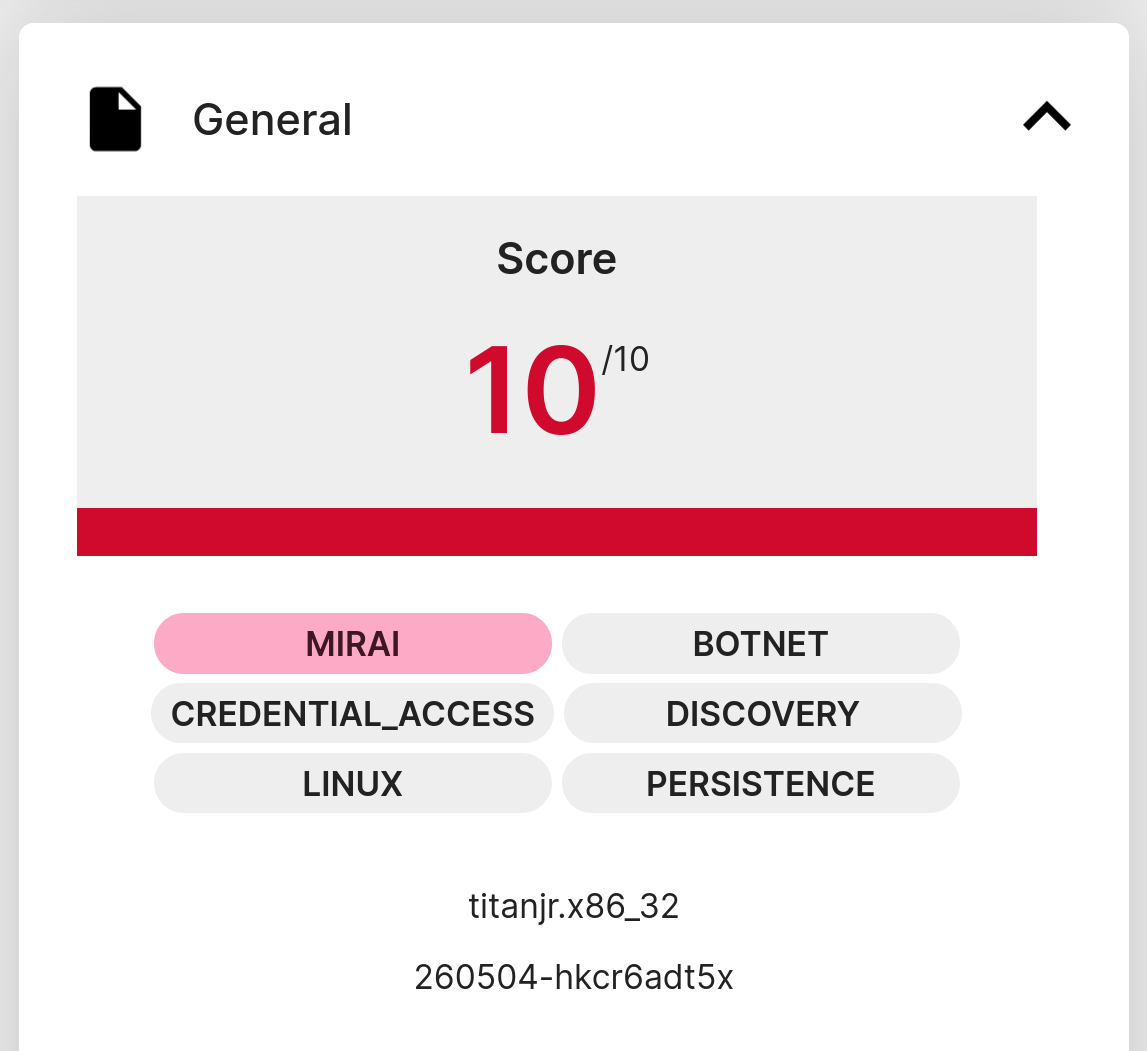
260504-hkcr6adt5x on Tria.ge

I’ve saved the capture file from Triage locally as “260504-hkcr6adt5x-behavioral1.pcapng”. This file can now be submitted to the FlowCarp demo service like this:

curl --data-binary @260504-hkcr6adt5x-behavioral1.pcapng -o mirai-eve.json https://demo.flowcarp.com

The generated mirai-eve.json file should now contain information about the flows and alerts that FlowCarp has found in the pcapng file. Let’s check which unique services that were contacted in the sandbox execution of this malware sample. I’m using jq to filter on event_type “flow” to show connection information instead of alerts.

  • jq -c 'select(.event_type=="flow")|[.dest_ip, .dest_port, .proto, .app_proto]' < mirai-eve.json | sort -u
  • ["107.189.17.70",80,"TCP","Mirai"]
  • ["107.189.17.70",80,"TCP",null]
  • ["1.1.1.1",53,"UDP","DNS"]
  • ["185.125.188.61",443,"TCP","DNS"]
  • ["185.125.188.62",443,"TCP","DNS"]
  • ["224.0.0.251",5353,"UDP","DNS"]
  • ["44.219.148.160",443,"TCP","TLS"]
  • ["84.17.50.24",443,"TCP","DNS"]
  • ["84.17.50.8",443,"TCP","TLS"]
  • ["8.8.8.8",53,"UDP","BACnet"]
  • ["8.8.8.8",53,"UDP","DNS"]
  • ["8.8.8.8",53,"UDP","GTPv2"]

Alright, let’s see if any of those connections generated an alert:

  • jq -r -c 'select(.event_type=="alert")|[.dest_ip, .dest_port, .proto, .alert.signature]' < mirai-eve.json | sort -u
  • ["107.189.17.70",80,"TCP","MALWARE protocol detected: Mirai"]

FlowCarp tells us that the malware implant is using the Mirai C2 protocol to connect to a C2 server on TCP 107.189.17.70:80.

Running FlowCarp Locally

You can, of course, run FlowCarp locally on your own computer or in a container/pod instead of using the demo service. There are pre-compiled binaries of FlowCarp available for download on flowcarp.com for most platforms.

Let’s re-analyze the Mirai pcapng file, which was sent to the online demo service, but this time FlowCarp will run locally.

  • ./flowcarp --input 260504-hkcr6adt5x-behavioral1.pcapng --output - 2>/dev/null | cut -d, -f 2,3,4 | sort -u
  • 107.189.17.70:80, TCP
  • 107.189.17.70:80, TCP, Mirai
  • 1.1.1.1:53, UDP, DNS
  • 185.125.188.61:443, TCP, DNS
  • 185.125.188.62:443, TCP, DNS
  • 224.0.0.251:5353, UDP, DNS
  • 44.219.148.160:443, TCP, TLS
  • 84.17.50.24:443, TCP, DNS
  • 84.17.50.8:443, TCP, TLS
  • 8.8.8.8:53, UDP, DNS

I let FlowCarp use its CSV output format instead of Eve JSON here, which is why cut was used to filter the output instead of jq. Nevertheless, the results are pretty much the same as before; FlowCarp detects Mirai traffic to 107.189.17.70:80.

You can try sending this same capture file to an IDS of your choice to see what alerts you get. Chances are that you might not get any alert for the Mirai traffic, since it is rather tricky to create good signatures for the Mirai C2 protocol. FlowCarp, on the other hand, doesn’t need any signatures to detect a protocol. All that is needed to build detection in FlowCarp is some example traffic of the protocol you’d like to identify. This unique feature is what makes FlowCarp so fantastic!

Real-Time Protocol Identification

FlowCarp is designed to run fast and use little resources, so that it can be used for local real-time analysis of network traffic. My general recommendation would be to run FlowCarp as a systemd service or to put it in a container or pod, but if you just want to test its real-time abilities then I suggest that you run this command:

tcpdump -U -w - | flowcarp --input - --realtime --preview --output -

FlowCarp will then read real-time PCAP data from standard input and print flow information – with identified application protocols – to standard output.

FlowCarp can also read real-time packet data through PCAP-over-IP, which allows us to utilize services like Fox-IT’s pcap-broker. You can start a pcap-broker listener like this:

./pcap-broker -listen 127.0.0.1:57012 -cmd "sudo tcpdump -i eth0 -U -w -"

FlowCarp can then access a real-time packet stream from the pcap-broker:

./flowcarp --input tcpconnect:127.0.0.1:57012 --realtime --preview --output -

I hope you'll find FlowCarp useful!

Posted by Erik Hjelmvik on Monday, 04 May 2026 14:53:00 (UTC/GMT)

Tags: #FlowCarp #protocol identification #Triage #tcpdump
Short URL: https://netresec.com/?b=265d268


Hunting for Cobalt Strike in PCAP

In this video I analyze a pcap file with network traffic from Cobalt Strike Beacon using CapLoader.

The pcap file and Cobalt Strike malware config can be downloaded from Recorded Future's Triage sandbox.

Cobalt Strike Beacon configs can also be extracted locally with help of Didier Stevens' 1768.py or Fox-IT's dissect.cobaltstrike.

IOC List

  • MD5 99516071d8f3e78e51200948bf377c4c
  • SHA1 59fe505b24bdfa54ee6e4188ed8b88af9a42eb86
  • SHA256 10e68f3e6c73161a1bba85ef9bada0cd79e25382ea8f8635bec4aa51bfe6c707
  • JA3 a0e9f5d64349fb13191bc781f81f42e1
  • JA4 t12d190800_d83cc789557e_7af1ed941c26
  • IP:port 104.21.88.185:2096 (Cloudflare)
  • Domain mail.googlesmail.xyz (Go Daddy)

Network Forensics Training

Are you interested in learning more about how to analyze network traffic from Cobalt Strike and other backdoors, malware and hacker tools? Then take a look at our upcoming network forensics classes!

Posted by Erik Hjelmvik on Thursday, 04 January 2024 10:12:00 (UTC/GMT)

Tags: #Cobalt Strike #CobaltStrike #Triage #JA3 #a0e9f5d64349fb13191bc781f81f42e1 #ThreatFox #CapLoader #Video #videotutorial

Short URL: https://netresec.com/?b=2410f02


EvilExtractor Network Forensics

I analyzed a PCAP file from a sandbox execution of the Evil Extractor stealer malware earlier today. This stealer collects credentials and files of interest from the victim’s computer and exfiltrates them to an FTP server. It is designed to autonomously collect and exfiltrate data rather than receiving commands from an operator through a command-and-control channel. The EvilExtractor creators market this feature as a “golden bullet”.

Real hackers don’t use reverse shells right? If you have only one bullet, would you waste with reverse shell? Try Evil Extractor to have golden bullet.

I downloaded the Evil Extractor capture file from Triage to a Windows Sandbox environment, to avoid accidentally infecting my computer when extracting artifacts from the PCAP. I then opened it up in the free version of NetworkMiner.

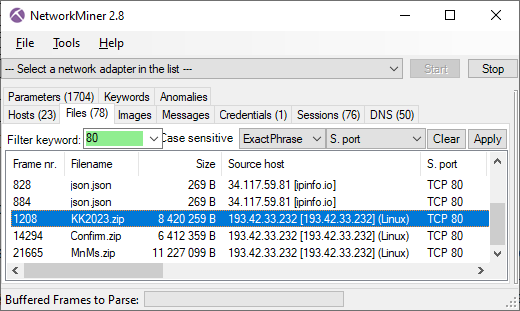
NetworkMiner shows that after checking its public IP on ipinfo.io EvilExtractor makes an unencrypted HTTP connection to a web server on 193.42.33.232 to download KK2023.zip. This zip archive contains a file called “Lst.exe” which is used to steal browser data, cookies and credentials according to Fortinet.

EvilExtractor HTTP Downloads
Image: Files downloaded from TCP port 80

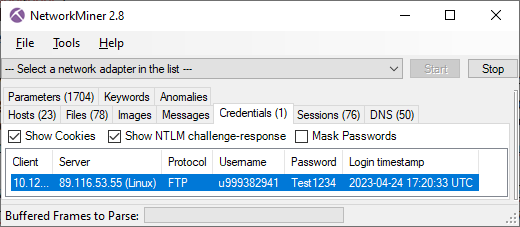
Twenty seconds later an FTP connection is established to 89.116.53.55 on TCP port 21. The username and password used to authenticate to the FTP server was “u999382941” and “Test1234”.

EvilExtractor FTP Credentials EvilExtractor FTP Requests

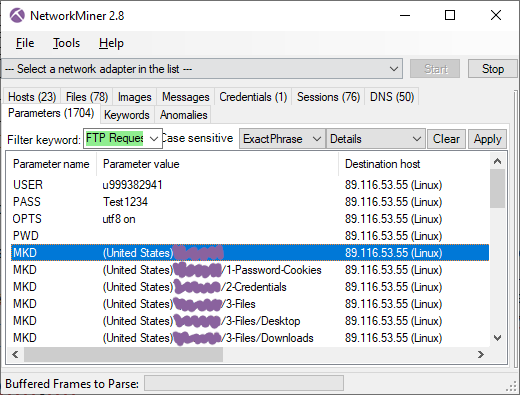
On the FTP server EvilExtractor creates a directory named after the country and hostname of the victim's PC, such as “(Sweden)DESKTOP-VV03LJ”, in which it creates the following three sub directories:

  • 1-Password-Cookies
  • 2-Credentials
  • 3-Files

EvilExtractor FTP exfil of cookies and credentials

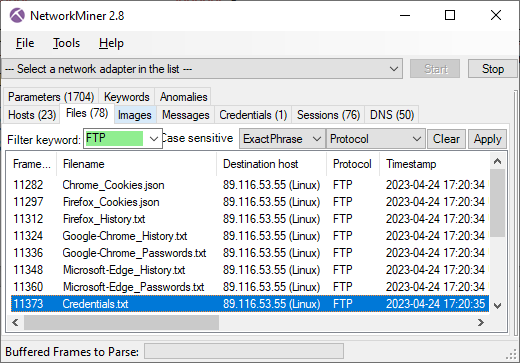
After uploading browser cookies, browser history and cached passwords from Chrome, Firefox and Edge to the “1-Password-Cookies” directory EvilExtractor sends a file called “Credentials.txt” to the “2-Credentials” directory. The contents of this text file looks something like this:

Public IP: [redacted]
Location: [lat],[long]
Computer Name: [redacted]
Username: Admin
RAM: 4 GB
OS Name: Microsoft Windows 10 Pro
OS Bit: 64-bit
Keyboard Language: en-US
GPU: [redacted]
CPU: Intel [redacted]
MAC Address: [redacted]
Extracted WIFI: [redacted]

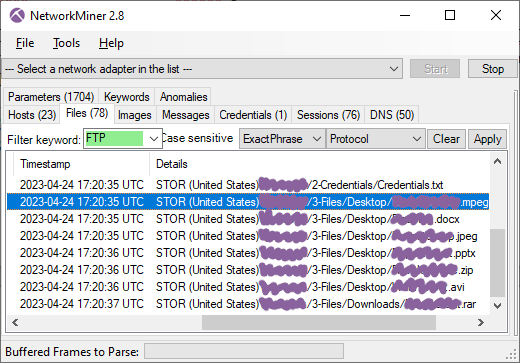
The stealer also exfiltrates files with mpeg, docx, jpeg, pptx, zip, avi and rar extensions from the victim PC to the “3-Files” directory on the FTP server. The directory structure of the victim’s PC is maintained on the FTP server, so that files from the victim's desktop end up in a folder called “Desktop” on the FTP server.

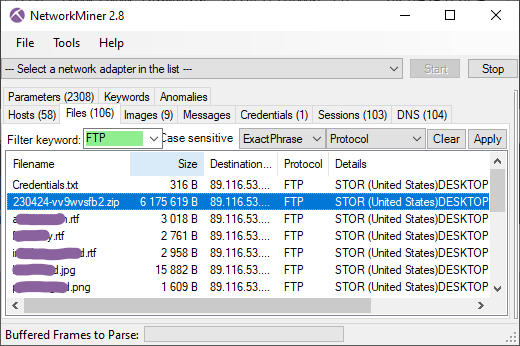
EvilExtractor FTP exfil of files

The stealer later downloaded a keylogger module (Confirm.zip) and a webcam module (MnMs.zip), but no additional data was exfiltrated from this particular victim PC after that point.

IOC List

  • Web server: 193.42.33.232:80
  • FTP server: 89.116.53.55:21
  • EvilExtractor: 9650ac3a9de8d51fddab092c7956bdae
  • KK2023.zip: f07b919ff71fb33ee0f77e9e02c5445b
  • Lst.exe: 163d4e2d75f8ce6c838bab888bf9629c
  • Confirm.zip: 30532a6121cb33afc04eea2b8dcea461
  • Confirm.exe: 0c18c4669e7ca7e4d21974ddcd24fdca
  • MnMs.zip: bda0bda512d3e2a81fc9e4cf393091eb
  • MnMs.exe: fb970c4367609860c2e5b17737a9f460

Users with an account on Triage can download the analyzed PCAP file from here: https://tria.ge/230424-vv9wvsfb2v/behavioral2

Update 2023-04-27

Jane tweeted a link to an execution of this same sample on ANY.RUN. This execution showed very similar results as the one on Triage, but with an interesting twist. Not only did the ANY.RUN execution exfiltrate images and documents from the Desktop and Downloads folders, it also exfiltrated “vv9wvsfb2v_pw_infected.zip”, which contained the EvilExtractor EXE file that was being run!

EvilExtractor FTP exfil of files

The PCAP from the ANY.RUN execution can be downloaded from here: https://app.any.run/tasks/43a11a79-4d1f-406c-86d7-158efb5ede01/

Posted by Erik Hjelmvik on Wednesday, 26 April 2023 08:50:00 (UTC/GMT)

Tags: #FTP #NetworkMiner #Sandbox #Triage #ANY.RUN

Short URL: https://netresec.com/?b=2342891