NETRESEC Network Security Blog - Tag : Remcos

rss Google News

Remcos Alerts from FlowCarp in EveBox

There is a wonderful little web-based alert and event front-end called EveBox, which renders Eve JSON formatted data to a web UI. This blog post demonstrates how EveBox can be used to show alert and flow information that FlowCarp has extracted from a Remcos malware infection.

pcap to FlowCarp to json to EveBox

Remcos RAT

The starting point of my analysis will be a PCAP file with network traffic from a Remcos RAT infection, which Brad Duncan has published on Malware-Traffic-Analysis.net. The password scheme for the zip file containing the PCAP can be found here, in case you'd like to follow along and perform the same analysis steps yourself. All commands and examples in this blog post can be run in both Linux and Windows.

JSON formatted alerts and flow data can be extracted from the PCAP file with FlowCarp like this:

flowcarp --input 2026-03-12-SmartApeSG-ClickFix-activity-for-Remcos-RAT.pcap --format EveJson --output -

But the free community license of FlowCarp doesn't include a protocol model for Remcos, which is why this command will generate flow events but no alerts about detected Remcos malware traffic. I will therefore submit the pcap file to the free FlowCarp demo server instead, which has a commercial license that can identify over 600 protocols. No registration or API key is required to use this demo server (as long as users behave − please behave).

curl --data-binary @2026-03-12-SmartApeSG-ClickFix-activity-for-Remcos-RAT.pcap -o remcos-eve.json https://demo.flowcarp.com

The downloaded remcos-eve.json file uses the Suricata Eve JSON format, so jq queries typically used to process Suricata eve.json log files can be used to parse and filter the JSON output from FlowCarp as well.

  • jq -c 'select(.event_type=="alert")|[.dest_ip, .dest_port, .proto, .alert.signature]' < remcos-eve.json
  • ["193.178.170.155",443,"TCP","MALWARE protocol detected: TLS, Remcos"]

This FlowCarp alert indicates that the PCAP file contains TLS-encrypted Remcos traffic, which means that FlowCarp has performed a so-called sub-protocol match to detect the protocol inside of TLS without decrypting the TLS layer. A quick way to verify if this traffic is Remcos in TLS is to check the JA3 hash or JA4 fingerprint of the client's TLS handshake.

  • tshark -r 2026-03-12-SmartApeSG-ClickFix-activity-for-Remcos-RAT.pcap -Y "ip.dst == 193.178.170.155 and tls.handshake" -T fields -e tls.handshake.ja3 -e tls.handshake.ja4
  • a85be79f7b569f1df5e6087b69deb493 t13i010400_0f2cb44170f4_5c4c70b73fa0

This nicely matches what we expect to see from TLS encrypted Remcos traffic. For reference these are the JA3 and JA4 fingerprints typically associated with Remcos:

  • JA3: a85be79f7b569f1df5e6087b69deb493
  • JA4: t13i010400_0f2cb44170f4_5c4c70b73fa0
  • JA4: t13i010400_0f2cb44170f4_1b583af8cc09

There is always a risk of false positives associated with JA3 or JA4 fingerprints, so a rule of thumb is to not blindly trust JA3/JA4 based alerts without having additional indicators of compromise. FlowCarp performs a much deeper identification of sub-TLS protocols than JA3/JA4, but there's still a false positive risk associated with detection of encrypted malware traffic — so make sure to verify alerts like this with other types of data sources, such as event logs from the infected device or OSINT information about the suspected C2 server. For this alert we can see that @DonPasci has reported 193.178.170.155:443 to ThreatFox as being a Remcos C2 server.

EveBox

EveBox is a web-based front-end for Suricata "EVE" alerts and events, created by Jason Ish. The EveBox source code lives on GitHub and pre-built EveBox binaries for Linux and Windows are available on evebox.org.

This evebox command will fire up a browser and render information about the flows and alerts in the Eve JSON file from FlowCarp:

evebox oneshot remcos-eve.json
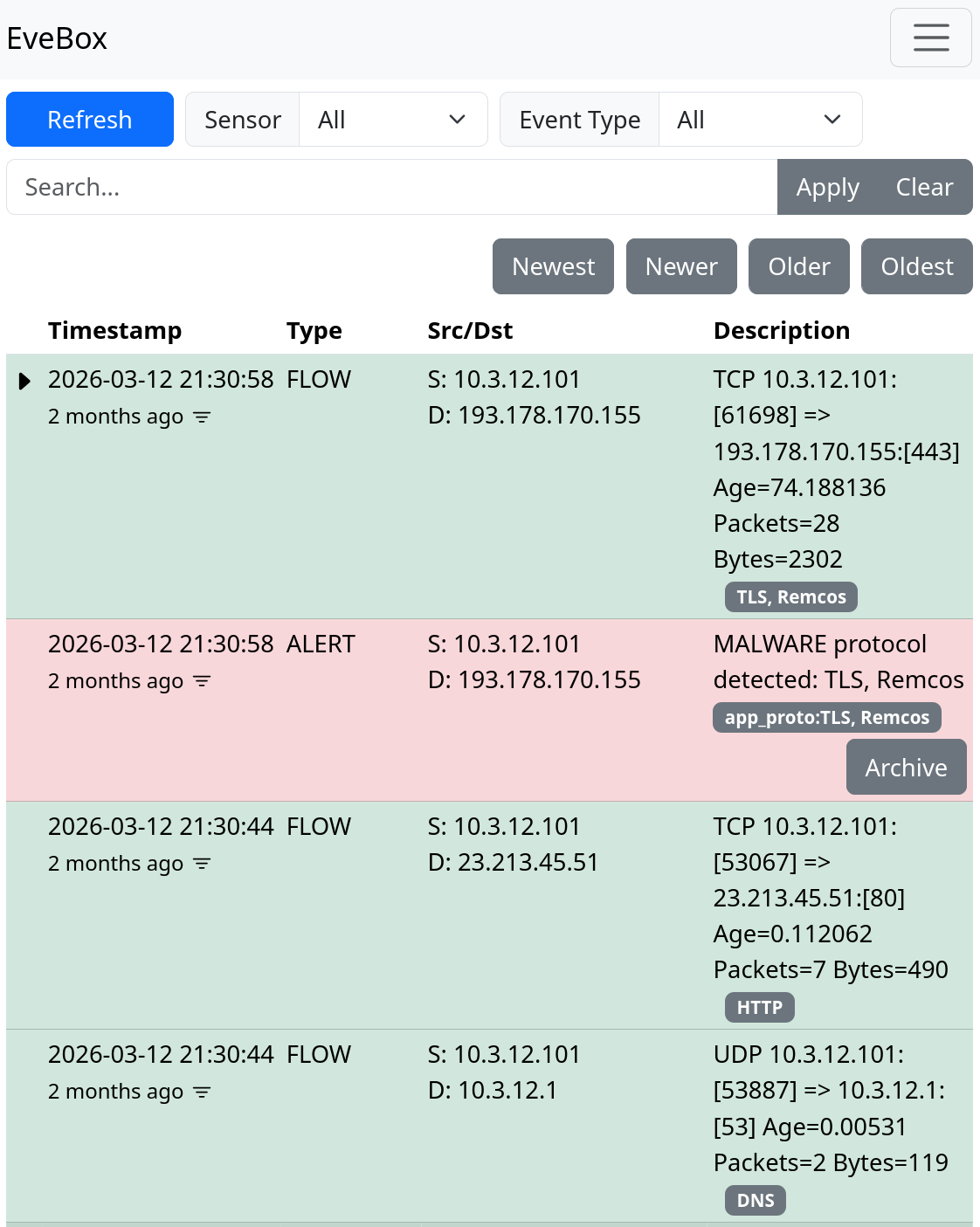
Remcos events from FlowCarp in EveBox

The flows and alerts are displayed in reverse order, so that the most recent events are on top. The Remcos alert stands out in red and immediately catches your eye. Let's change Event Type from "All" to "Alert" just to make sure there are no other alerts.

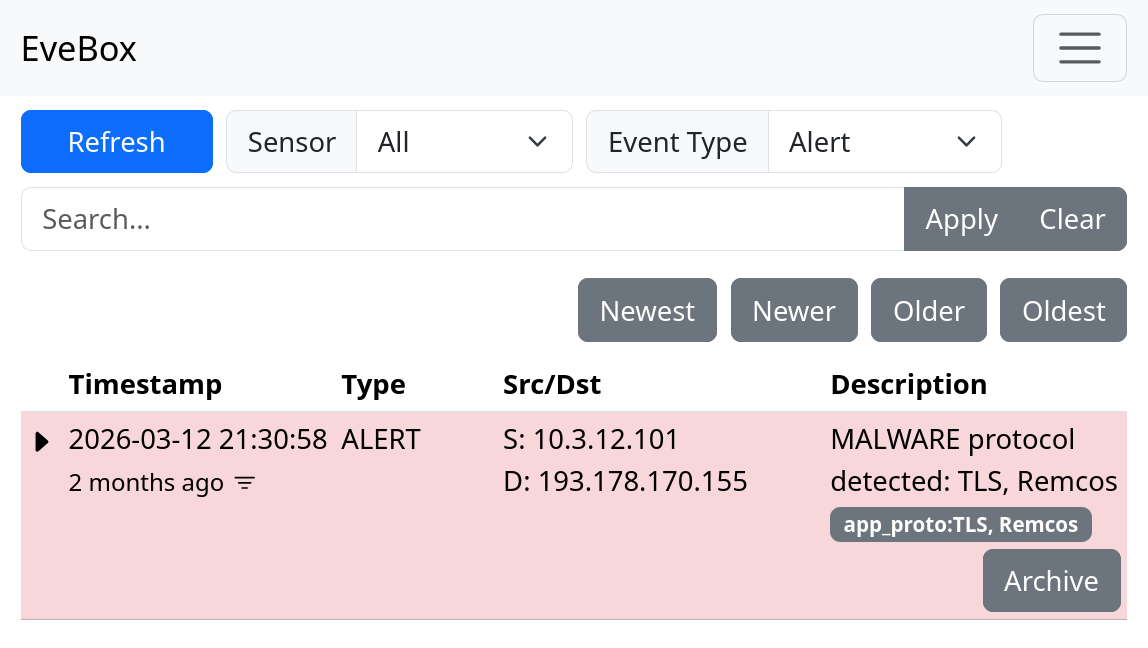
Remcos alert from FlowCarp in EveBox

Looks like this was the only alert in this JSON file.

EveBox is built for Suricata, but it's really nice that it can be used out-of-the-box to read FlowCarp's JSON logs as well. For reference, let's also see what it looks like when we run the same PCAP file through Suricata and import eve.json into EveBox.

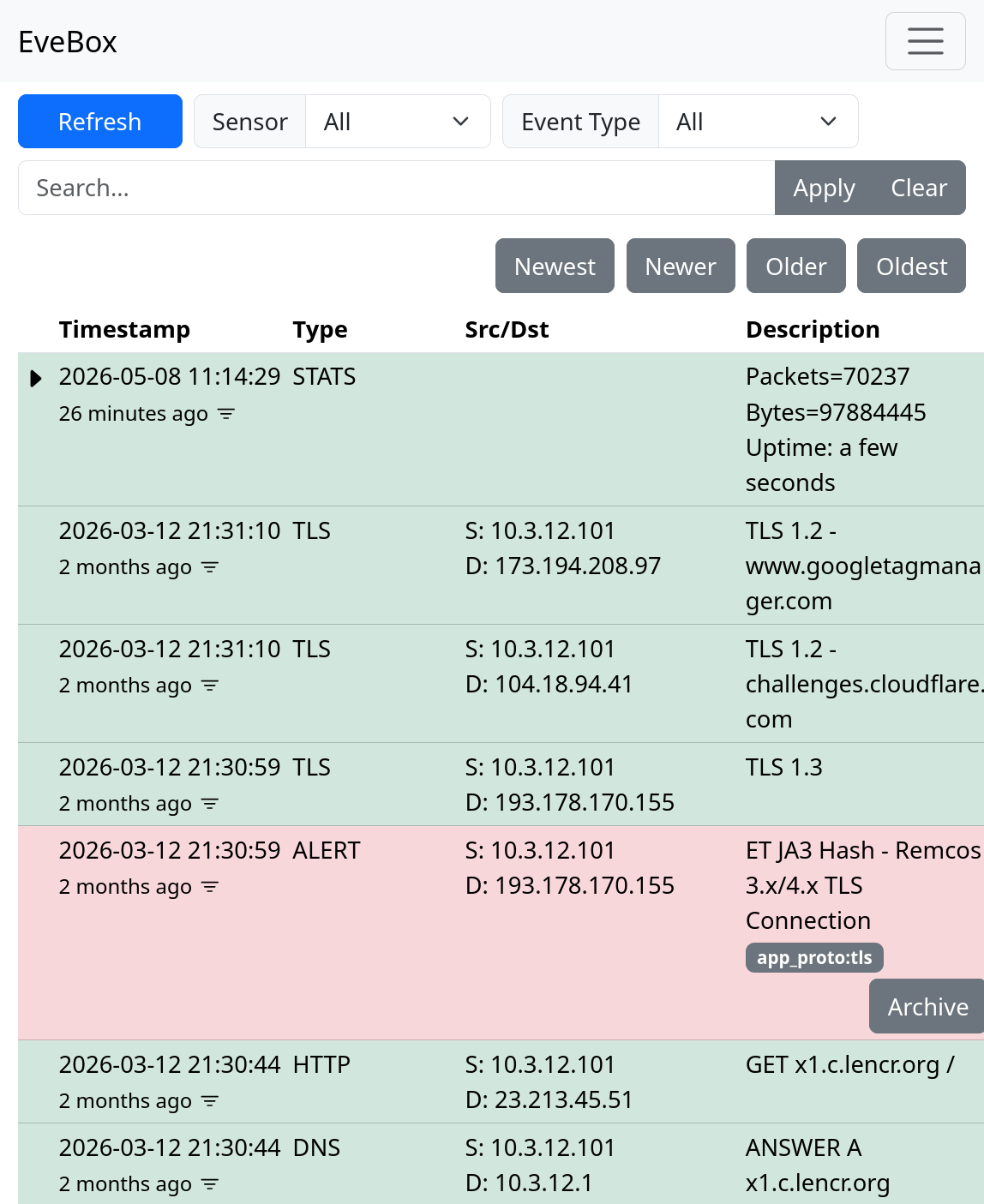
Remcos events from Suricata in EveBox

I'm happy to see that Suricata also alerts on the same TCP session as FlowCarp. This alert was raised by the Emerging Threats signature ID 2036594, which triggers whenever the JA3 hash of a TLS handshake is a85be79f7b569f1df5e6087b69deb493.

Posted by Erik Hjelmvik on Friday, 08 May 2026 11:49:00 (UTC/GMT)

Tags: #FlowCarp #Remcos #a85be79f7b569f1df5e6087b69deb493 #t13i010400_0f2cb44170f4_5c4c70b73fa0 #t13i010400_0f2cb44170f4_1b583af8cc09

Short URL: https://netresec.com/?b=2659fc0


NetworkMiner 3.0 Released

NetworkMiner 3.0

I am very proud to announce the release of NetworkMiner 3.0 today!

This version brings several new protocols as well as user interface improvements to NetworkMiner. We have also made significant changes under the hood, such as altering the default location to where NetworkMiner extracts files from network traffic.

Some of the major changes in this new release are:

  • New protocols: QUIC, CIP (EtherNet/IP), UMAS and Remcos RAT.
  • Improved passive OS fingerprinting.
  • Additional filtering capabilities.
  • User interface adapted for Linux.

Filtering of Displayed Artefacts

A tooltip text is temporarily displayed when a filter is activated. The tooltip shows the number of visible items after the filter is applied. This tooltip can also be shown at a later point by hovering with the mouse over the filter text or the Apply button.

Right-clicking on an item or artefact in any of NetworkMiner’s tabs brings up a context menu. We’ve now added an “Apply as Filter” option to this context menu, which can be used to let NetworkMiner automatically generate a filter based on the clicked item. This feature saves time for the analyst and reduces risk of misspellings.

We have also added a keyword filter to the Credentials tab and updated the image filename filter to ignore case.

Other User Interface Improvements

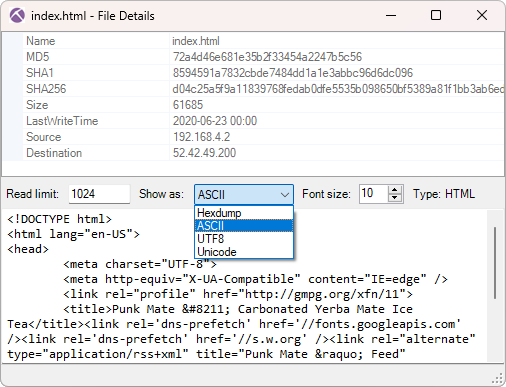
The File Details window, which shows metadata and contents of an extracted file, now has a “Show as” menu that can be used to preview the contents of a file as ASCII, Hex, Unicode or UTF-8.

Show as ASCII in NetworkMiner File Details

This file details window can now also be accessed directly from the Images tab by right-clicking on a thumbnail of an extracted image.

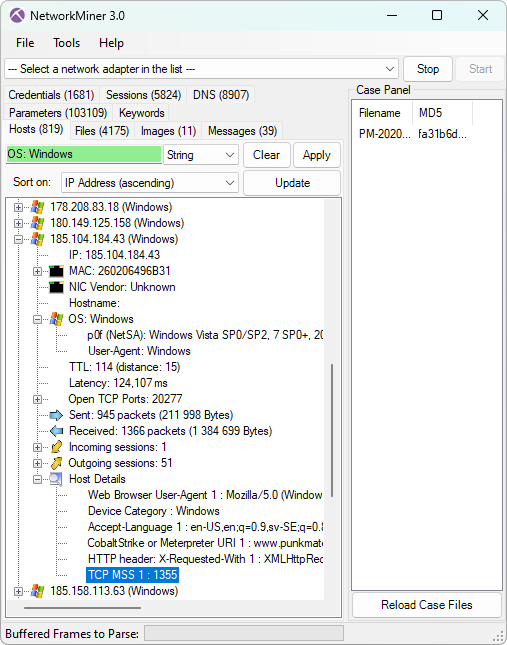
NetworkMiner 3.0 extracts Maximum Segment Size (MSS) values from TCP handshakes and show them under Host Details for each respective IP address. This value can help with determining if a host is behind a VPN. An MSS value below 1400 indicates that the traffic might have passed through some form of overlay network, such as a tunnel or VPN.

MSS indicating VPN usage in NetworkMiner's Hosts tab
Image: Details for a host communicating through a VPN

Other indicators that can help identify VPN and tunnelled traffic is IP TTL and latency, which NetworkMiner already extracts.

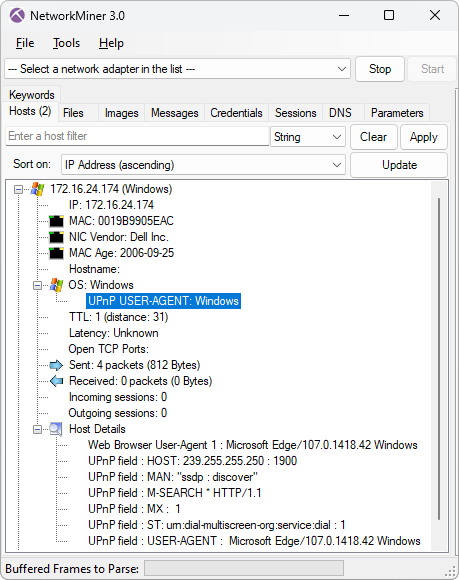
The screenshot above also shows that the operating system was identified as Windows, both with help of p0f as well as based on the client’s web browser user-agent. The user-agent based OS fingerprinting is a new feature that we added in NetworkMiner 3.0. This is a nice complement to the TCP and DHCP based OS fingerprinting features that NetworkMiner already performs. We’ve configured this feature to also detect operating systems of user-agent strings sent over UPnP/SSDP.

User-Agent OS extracted from UPnP traffic
Image: Operating system identified from User-Agent string in UPnP

The text on a few of NetworkMiner’s buttons were not visible on some Linux distros, depending on how much button padding the respective window manager and theme added. Button sizes have therefore been increased in this release to reduce the risk of text not being visible when NetworkMiner is run in Linux.

New Protocol: QUIC

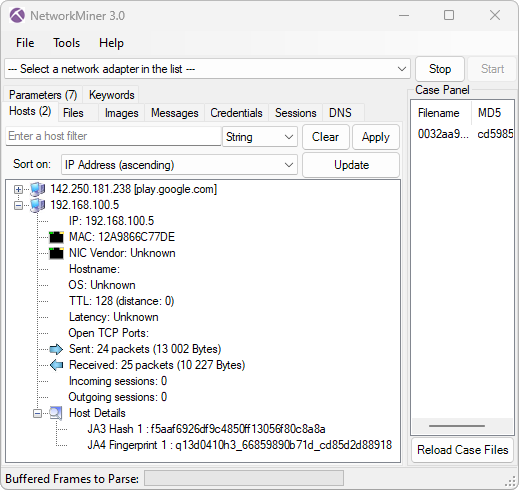
NetworkMiner 3.0 parses initial packets from the QUIC protocol (RFC 9000), which is the UDP based protocol used to transport HTTP/3. The QUIC parser allows NetworkMiner to extract TLS handshakes from UDP 443 traffic, from which the server’s hostname can be read if the client uses the SNI extension. The extracted TLS handshakes from QUIC are also used to generate JA3 and JA4 fingerprints for clients.

Information extracted from QUIC with NetworkMiner
Image: Server hostname and client JA3 and JA4 fingerprints extracted from QUIC

New Protocol: CIP and EtherNet/IP

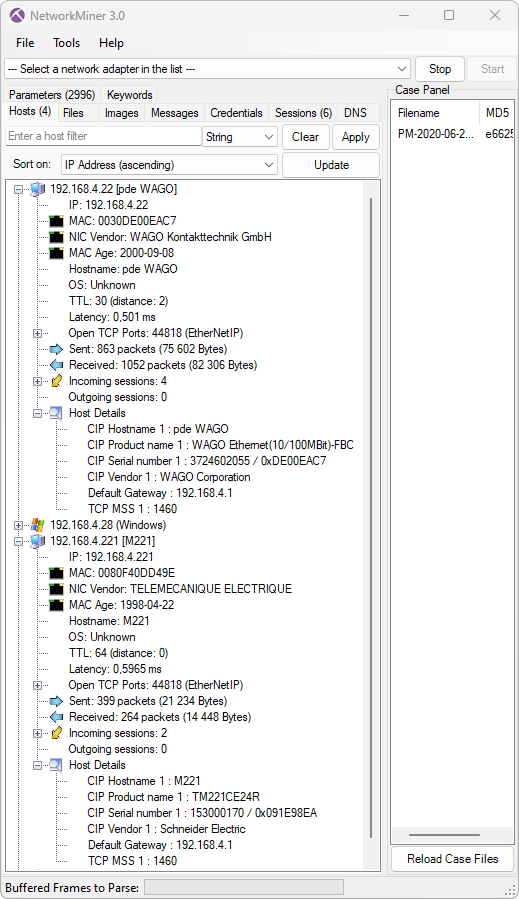
We added parsers for the industrial control system protocols CIP and EtherNet/IP. The implementation does not cover all of the CIP and EtherNet/IP specifications, instead we focused on extracting device information, such as product vendor, product name, bulletin name, serial number and hostname. Such device information is crucial when performing passive asset identification of PLC’s and other industrial devices on OT/ICS networks, such as in factories and power plants. The CIP parser also supports extraction of tag data from Rockwell's proprietary version of CIP.

Device information extracted from CIP traffic with NetworkMiner
Image: Device information extracted from CIP traffic from a WAGO 750-841 controller and a Schneider Electric M221 PLC

New Protocol: UMAS

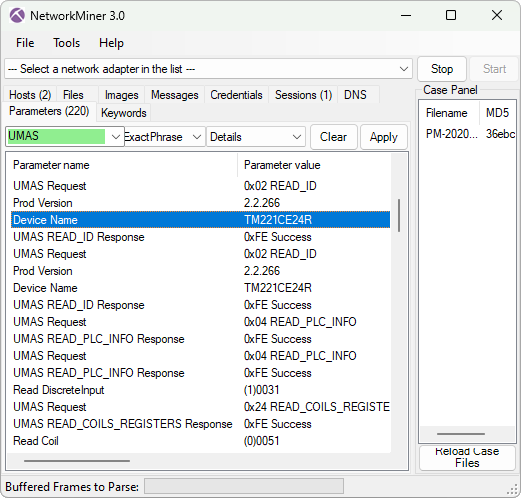
A parser for the industrial control system protocol Modbus/TCP was added to NetworkMiner 2.0 back in 2016. In today’s 3.0 release we’ve enhanced the Modbus implementation to also parse out commands from Schneider Electric's proprietary UMAS protocol, which runs on top of Modbus by using the special function code 90 (0x5a). Our implementation unfortunately doesn’t have full coverage of UMAS, since we don’t have a protocol specification for this proprietary protocol. Nevertheless, our implementation recognizes 40 different UMAS commands (aka UMAS function codes) and can extract fields and parameters from at least 6 of them. The parsed UMAS commands can be viewed in NetworkMiner’s Parameters tab.

UMAS Parameters in NetworkMiner

New Protocol: REMCOS C2

We started adding parsers for proprietary malicious Command-and-Control (C2) protocols, like StealC, njRAT, BackConnect and RMS, to NetworkMiner a couple of years ago. These malware C2 and backdoor protocol parsers enable security researchers to study what actions threat actors perform when accessing victim computers or honeypot systems.

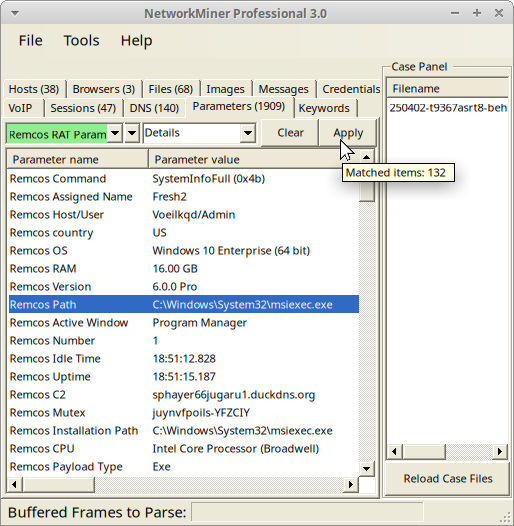
We’re continuing on our endeavour of creating parsers for malicious protocol by adding support for the Remcos RAT C2 protocol to NetworkMiner 3.0.

Remcos RAT parameters extracted from C2 network traffic by NetworkMiner
Image: Remcos C2 parameters from PCAP file on tria.ge with NetworkMiner Professional in Linux

Naturally, NetworkMiner’s Remcos parser can’t extract the C2 comms if Remcos uses TLS. Another limitation is that the free version of NetworkMiner is only able to parse Remcos traffic when the C2 server is running on a standard port like TCP 2404. The port-independent-protocol-identification feature in the Professional edition of NetworkMiner, however, identifies and parses Remcos traffic regardless of which port the C2 server listens on (the C2 server in the screenshot above was running on TCP port 1961).

Improved Protocol Parsers

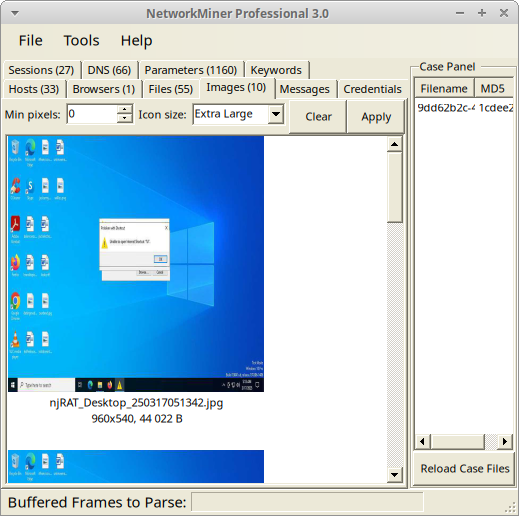
We have also improved several of NetworkMiner’s existing protocol parsers. NetworkMiner’s parser for the trojan/backdoor njRAT (Bladabindi) protocol has, for example, been extended to reassemble full desktop screenshots from njRAT’s Remote Desktop feature.

njRAT Desktop screenshots extracted from network traffic with NetworkMiner
Image: njRAT desktop image extracted from PCAP file on any.run with NetworkMiner Professional in Linux

NetworkMiner’s parser for Modbus has also been extended to support additional function codes and the NTLMSSP parser (for SMB/SMB2) is now better at extracting hostnames to NetworkMiner’s Hosts tab.

Bugs Fixes

A bug in NetworkMiner’s timestamp comparison code previously caused items to be sorted incorrectly when the Timestamp column header was clicked. This bug has now been fixed. We have also fixed a bug relating to extraction of parameters sent in JSON encoded HTTP POST requests.

Breaking Changes

Some of the changes introduced in the 3.0 release might require some users to adapt their workflow. One such change is that the default output path for extracted files and captured packets has changed from NetworkMiner’s directory to %LocalAppData%\NetworkMiner\ in Windows and ~/.local/share/NetworkMiner/ in Linux. This means that you no longer need to add write permissions to the NetworkMiner application directory or subdirectories thereof, since NetworkMiner no longer creates or modifies files there.

Another breaking change is that we have removed the Anomalies tab from the user interface. Windows users can still see alerts by starting NetworkMiner with --filelog, while Linux can use --debug to print debug, warning and error messages to stderr. Use --loglevel warning to suppress info and debug messages.

A change that only affects users of NetworkMiner Professional is that the command line tool NetworkMinerCLI now requires a Corporate License. If you currently have a single-user license, then you will still be able to use the command line tool in your 2.x version of NetworkMiner Professional, but not in the new 3.0 release.

NetworkMiner Professional

There are several improvements in the 3.0 release that only affect users of NetworkMiner Professional. One noteworthy update is that the Pro release has become significantly faster, especially for capture files containing many short TCP sessions. NetworkMiner Professional now saves around two milliseconds in parsing time for every TCP session. This might not sound as much, but it actually makes a huge difference when parsing capture files containing thousands of small TCP sessions.

NetworkMiner’s support for the TLS fingerprinting method JA4 has also been extended even further in the 3.0 release. NetworkMiner Professional now leverages FoxIO’s JA4 database to identify operating systems as well as applications based on client TLS handshake packets.

Other improvement of NetworkMiner Professional include:

  • Network operator and AS number displayed on Hosts tab.
  • File OSINT lookup includes Censys body_hash lookups.
  • IP and domain OSINT lookups added to NetworkMiner’s DNS tab.
  • PcapNG packet comments displayed in the Parameters tab.

Upgrading to Version 3.0

Users who have purchased NetworkMiner Professional can download version 3.0 from our customer portal, or use the “Check for Updates” feature from NetworkMiner's Help menu. Those who instead prefer to use the free and open source version can grab the latest release of NetworkMiner from the official NetworkMiner page.

Posted by Erik Hjelmvik on Friday, 04 April 2025 10:53:00 (UTC/GMT)

Tags: #NetworkMiner #QUIC #JA3 #JA4 #njRAT

Short URL: https://netresec.com/?b=254caa9


CapLoader 1.9.6 Released

CapLoader 1.9.6

CapLoader now detects even more malicious protocols and includes several new features such as JA4 fingerprints, API support for sharing IOCs to ThreatFox and OSINT lookups of malware families on Malpedia. The new CapLoader 1.9.6 release also comes with several improvements of the user interface, for example interactive filtering of flows and services with regular expressions.

Detection of Malware C2 Protocols

Malware authors continually keep coming up with new C2 protocols for defenders to detect. Luckily we don’t need to manually create protocol signatures for CapLoader, we only need a few examples of traffic for a protocol to generate a statistical model that CapLoader can use to detect that protocol. We call this feature Port Independent Protocol Identification (PIPI).

We’ve added support for detecting of the following protocols in this new release of CapLoader:

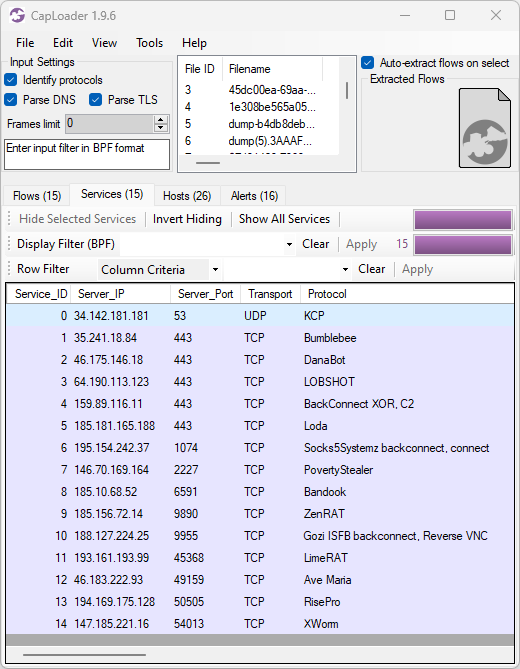
Malicious protocols detected by CapLoader

Image: Protocols identified in PCAP files with malware traffic from various sandboxes (ANY.RUN, Hybrid-Analysis, Joe Sandbox and Triage)

Our PIPI feature can also detect protocols inside of other protocols, such as Cobalt Strike, DCRat, Emotet, Formbook, Gozi ISFB, GzipLoader and Socks5Systemz which all run on top of HTTP. It is sometimes even possible to identify malicious protocols that use TLS encryption, such as AsyncRAT, Cobalt Strike, Emotet, IcedID or Remcos. However, detection of malicious TLS encrypted protocols is a difficult challenge and might be subject to false positives.

Sharing IOCs to ThreatFox

ThreatFox is a free online service for sharing indicators of compromise (IOCs) from malware. ThreatFox can be queried for a particular malware family, such as RedLine Stealer, and it’ll return a list of URLs, domain names and IP:port pairs used for C2 communication or payload delivery for that malware. You can also query for a domain or IP address to see if it’s a known C2 address of any malware or botnet.

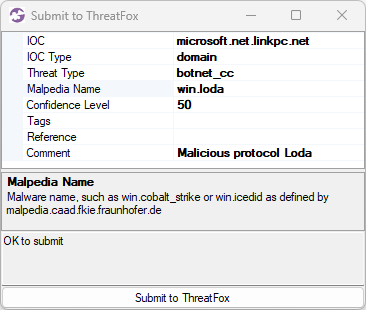
CapLoader has supported OSINT lookup of IP addresses and domains on ThreatFox since the release of version 1.9, but with this release we also add the ability to contribute by sharing IOCs with the infosec community. All you need to do is to enter your ThreatFox API-key in CapLoader’s settings, then right-click a flow, service or alert and select “Submit to ThreatFox”.

Submitting Loda IOC to ThreatFox

Image: Submission of microsoft.net.linkpc[.]net to ThreatFox

If the right-clicked item is an alert for a “Malicious protocol” then CapLoader will automatically populate the Mapledia Name field, as shown in the screenshot (win.loda).

TLS Client Fingerprinting with JA4

John Althouse announced the new JA4+ fingerprint methods a couple of months ago on the FoxIO blog. In short JA4+ is a suite of methods designed to fingerprint implementations of a specific set of protocols, including TLS, HTTP and SSH. As you’ve probably guessed JA4+ is a successor to the JA3 and JA3S hashes that we’ve learned to love (we added JA3 fingerprinting to NetworkMiner in 2019).

Most of the fingerprinting methods in the JA4+ suite are patent pending except for the TLS client fingerprinting method “JA4”, which FoxIO does not have patent claims and is not planning to pursue patent coverage for. We have therefore built a JA4 fingerprinting engine that we’ve included in this CapLoader release. Future releases of NetworkMiner will hopefully also include our JA4 fingerprinting engine.

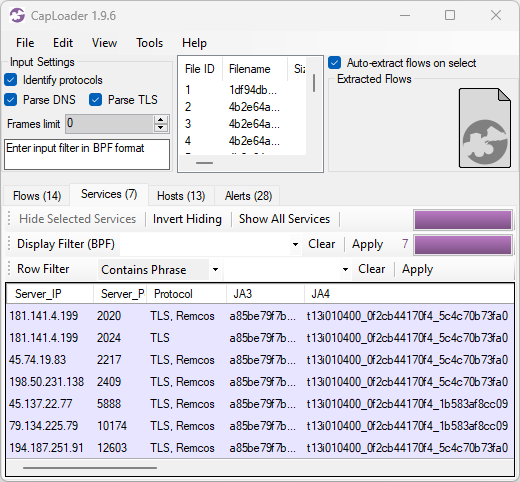
JA3 and JA4 fingerprints of Remcos traffic. a85be79f7b569f1df5e6087b69deb493 t13i010400_0f2cb44170f4_5c4c70b73fa0 t13i010400_0f2cb44170f4_1b583af8cc09

Image: JA3 and JA4 hashes of Remcos C2 traffic

JA4 is similar to JA3 in many ways, but one essential difference is that JA4 fingerprints are something of a fuzzy hash of the client’s handshake rather than a MD5 hash of the raw fingerprint. JA3’s use of MD5 hashing has received criticism, for example in academic literature, partly due to the inability to see if two JA3 hashes have similar TLS handshakes.

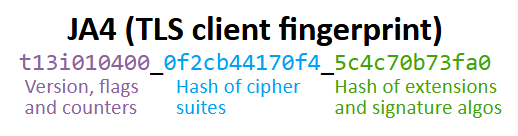
JA4 hash explained. Breakdown of Remcos JA4 hash t13i010400_0f2cb44170f4_5c4c70b73fa0

JA4 does use hashes, but instead of just being one big hash it breaks the fingerprint into three separate sections; where the first section is used in its raw (non-hashed) format and the other two sections are hashed separately. Thus, an update of a TLS implementation, which only adds one additional cipher, will increment the cipher counter in the first section of the JA4 fingerprint by one and the ciphers hash (second section) will get a new value. The hash in the last section will remain intact.

In the previous CapLoader screenshot with Remcos C2 traffic we see TLS handshakes that have the same JA3 hash (a85be79f7b569f1df5e6087b69deb493) but the JA4 fingerprints have different values (t13i010400_0f2cb44170f4_5c4c70b73fa0 and t13i010400_0f2cb44170f4_1b583af8cc09). The reason why the last JA4 section is different even though the JA3 hash is the same is because some of these TLS handshakes present a different set of signature algorithms, which is a parameter that isn't being used in JA3.

Alerts Tab

CapLoader’s Alerts tab now includes more alert types than before and each alert has a severity rating graded as follows:

  • High = 4
  • Medium = 3
  • Low = 2
  • Info = 1

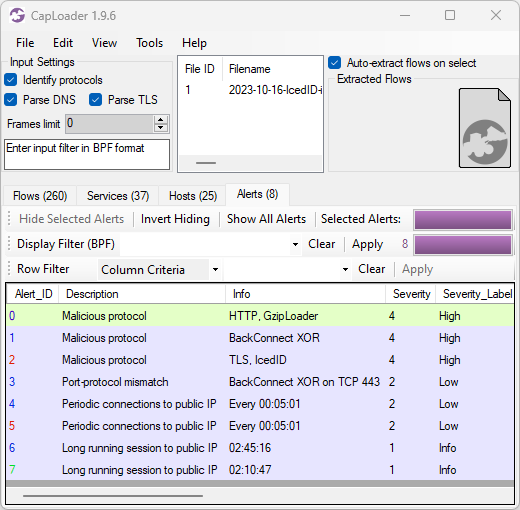
A typical high-severity alert is when a known malicious protocol is detected, while an “Info” type alert can provide a heads up about traffic from things like coin mining or legitimate remote admin tools. As you can see in the screenshot below the alerts are sorted based on severity to make it easier to prioritize them.

Alerts in CapLoader for 2023-10-16-IcedID-infection.pcap

Image: CapLoader alerts for 2023-10-16-IcedID-infection.pcap

Here’s a breakdown of the alerts shown in the CapLoader screenshot above:

All these alerts are indicators of an IcedID infection, including the 5 minute C2 connection interval which I have mentioned before.

Other User Interface Improvements

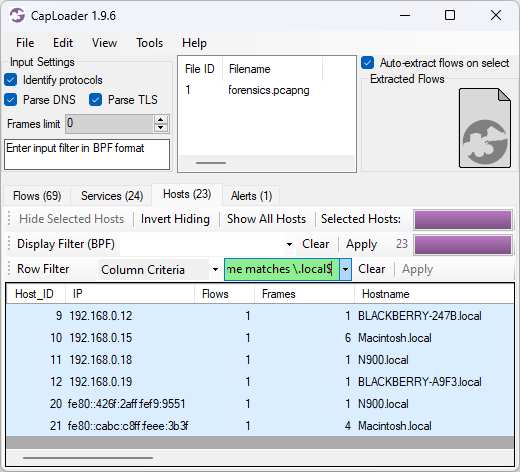
CapLoader’s “Column Criteria” row filter could previously only be used to filter on columns with a specific value, such as “Protocol = TLS”. This new release of CapLoader additionally allows users to do substring matching with the “contains” keyword and regular expression (regex) matching with the “matching” keyword. In the screenshot below the Column Criteria “Hostname matches \.local$” is used to only show hosts that have a hostname ending with “.local”.

RegEx matching of .local hostnames

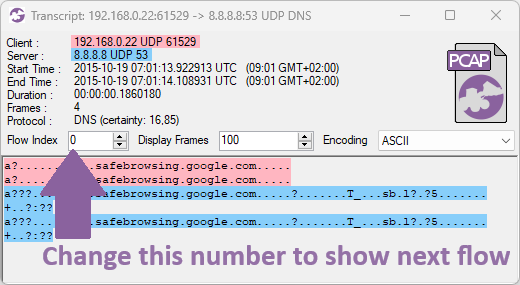
We’ve also added an often asked for feature to CapLoader, namely the ability to switch between different flows in the Transcript window.

CapLoader Transcript. Change this number to show next flow

The flows you can switch between depends on how the transcript window was opened. A flow transcript opened from the Flows tab will allow switching between the flows that were visible in the list from where the transcript was opened. A transcript opened from any of the other tabs (Services, Hosts or Alerts), on the other hand, allows switching between the different flows for the particular service, host or alert that was opened.

Credits

I would like to thank Nic Cerny, Trent Healy and Fredrik Ginsberg for their input on various improvements that have been implemented in CapLoader 1.9.6.

Updating to the Latest Release

Users who have already purchased a license for CapLoader can download a free update to version 1.9.6 from our customer portal or by clicking “Check for Updates” in CapLoader’s Help menu.

Posted by Erik Hjelmvik on Wednesday, 15 November 2023 12:08:00 (UTC/GMT)

Tags: #CapLoader #ThreatFox #JA3 #JA4 #Remcos #a85be79f7b569f1df5e6087b69deb493 #t13i010400_0f2cb44170f4_1b583af8cc09 #t13i010400_0f2cb44170f4_5c4c70b73fa0 #IcedID #GzipLoader #regex

Short URL: https://netresec.com/?b=23B6bcd